

How to prepare a Kindle EPUB for Amazon KDP
A Kindle book is not a small printed page. Readers can change the typeface, font size, spacing, colour theme, and screen orientation. A good Kindle edition therefore preserves structure and meaning while allowing the layout to reflow.
Folius is built around that principle. You can maintain one structured manuscript, tune its ebook styling, and export EPUB without copying the book into a second layout tool.
1. Start with clean book structure
Organise your manuscript into front matter, body matter, and back matter. Use chapters for major reading units and heading levels for sections within a chapter.
In Settings, complete the title, author, language, description, publisher, copyright, and identifier fields that apply to your edition. Keep the title and author consistent with the details you will enter in KDP.
Amazon requires Kindle books with chapters or sections to include a working logical table of contents. Folius builds navigation from your book structure, so meaningful chapter and section names matter. Read Amazon’s Kindle table of contents guidance for the current requirement.
2. Edit for reflow, not fixed pages
Use semantic elements—paragraphs, headings, lists, quotations, images, and footnotes—instead of using spaces or repeated blank lines to force a visual position.
Page numbers, print gutters, and recto/verso starts do not carry the same meaning in a reflowable ebook. A “page” changes with every device and reader setting. Use Folius’s ebook preview to concentrate on reading order, hierarchy, and rhythm.
3. Prepare images carefully
Insert images where they belong in the reading sequence. Add useful alternative text wherever the image conveys information, and avoid turning ordinary text into an image.
Images should be clear at common Kindle screen sizes without making the EPUB unnecessarily large. Amazon’s ebook accessibility guidance recommends real text, logical reading order, useful image descriptions, and navigable headings.
Your storefront cover is uploaded separately during KDP title setup. Amazon adds that cover to the Kindle edition, so do not insert a duplicate cover page into the manuscript unless you have a specific reason.
4. Preview the ebook in Folius
In Write, choose Show preview, then change the preview destination to EPUB. Check:
- chapter and section order;
- heading hierarchy;
- paragraph breaks, lists, quotations, and footnotes;
- image placement and captions;
- front and back matter;
- navigation labels.
Folius builds the EPUB with responsive typography, so it adapts automatically to different screen sizes and reader settings. You do not need to tune separate narrow and wide layouts.
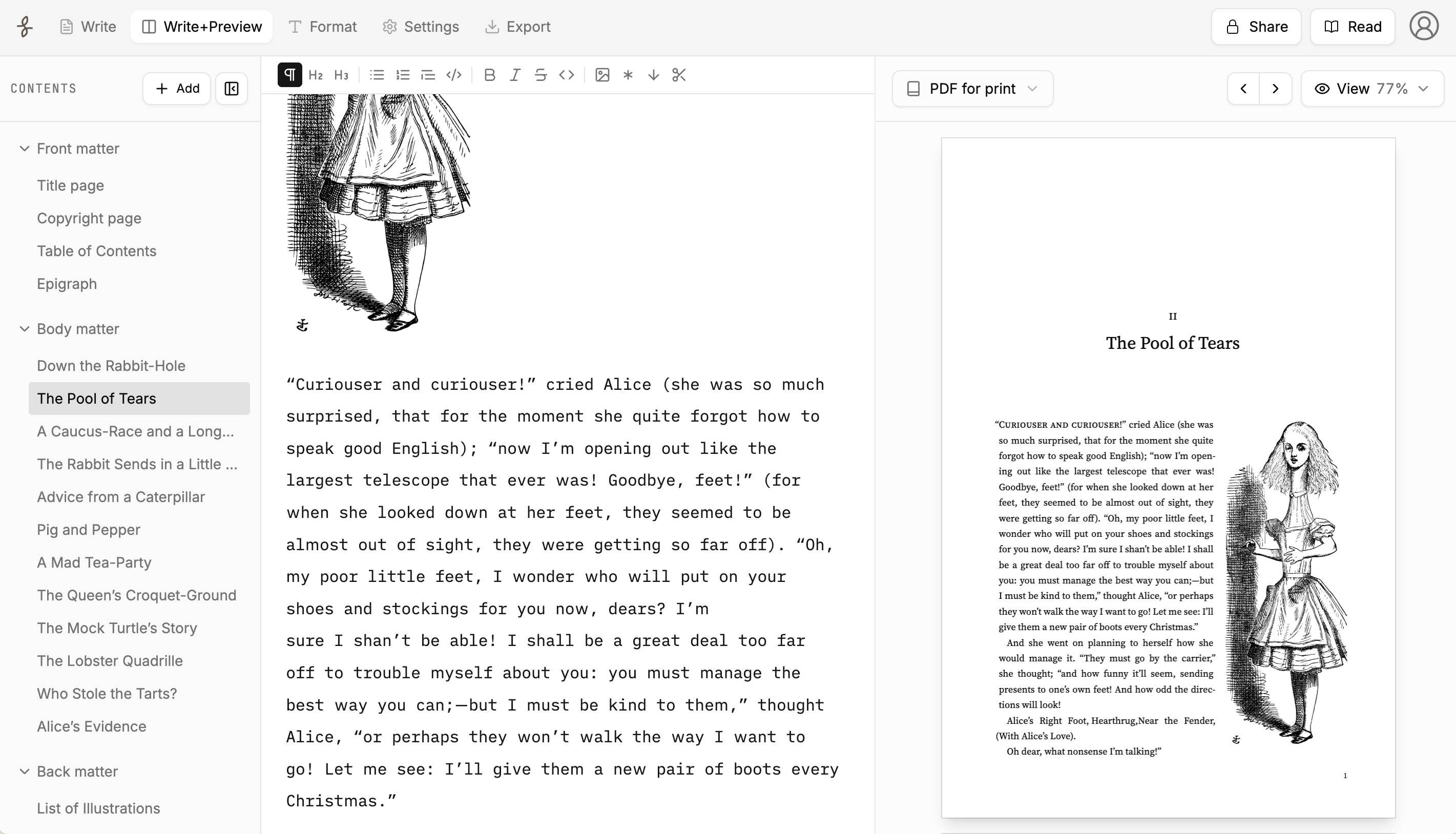
The same structured manuscript can be inspected against different output destinations without leaving the writing workspace.
5. Export EPUB
Open Export, choose EPUB e-book, and generate the file. Folius converts the structured manuscript to XHTML, packages the book resources, and generates ebook CSS from your theme.
EPUB is the best handoff format for a reflowable Kindle edition because it preserves structure and lets KDP perform its Kindle conversion. Amazon’s ebook manuscript formatting guide covers its current preparation recommendations.
6. Test before publication
Upload the EPUB to KDP and inspect it in Amazon’s Online Previewer. Test more than one device profile and pay particular attention to:
- the table of contents and “Go To” navigation;
- chapter starts and section headings;
- images at small screen widths;
- italics, bold text, lists, quotations, and footnotes;
- the start reading location;
- accessibility information requested during title setup.
If KDP reports a conversion problem, fix the source in Folius and export again. Keeping the correction in the manuscript prevents the Kindle edition from drifting away from your print and web editions.
7. Perform the final store checks
Before publishing, compare the title, subtitle, author, language, description, and cover in KDP with the book itself. Preview the sample opening as a reader would see it and remove accidental blank content or duplicated front matter.
Amazon performs the final conversion, content review, and store validation. Folius helps you produce a well-structured EPUB and keeps revisions repeatable; KDP’s preview remains the final authority for the Kindle file Amazon will deliver.