

How to prepare a paperback for Amazon KDP
Publishing a paperback is partly an editorial job and partly a manufacturing job. Your words need to read well, but the interior file also has to describe a physical object: a particular trim size, a safe gutter, and—when artwork reaches an edge—enough bleed for the page to be cut cleanly.
Folius keeps those decisions with the manuscript and generates the print PDF for you. It also runs a KDP-aware preflight before export, so several common submission problems appear while they are still easy to fix.
1. Finish the structure of your book
Before adjusting margins, make sure the manuscript has the parts it needs:
- front matter such as a title page and copyright page;
- body matter divided into clearly named chapters and sections;
- back matter such as acknowledgements, notes, a bibliography, or an author page.
In Folius, use the contents panel to keep these parts in the right order. Add the book title, author, language, publisher, copyright, and other metadata under Settings.
2. Choose a trim size
Trim size is the final width and height of a printed page. Amazon describes 6 × 9 inches as the most common US paperback size, but the best choice depends on genre, line length, illustration needs, and printing cost.
Open Format in Folius and choose a supported print trim size. The live preview repaginates the book immediately, so you can judge the page as a page—not as an abstract list of measurements.
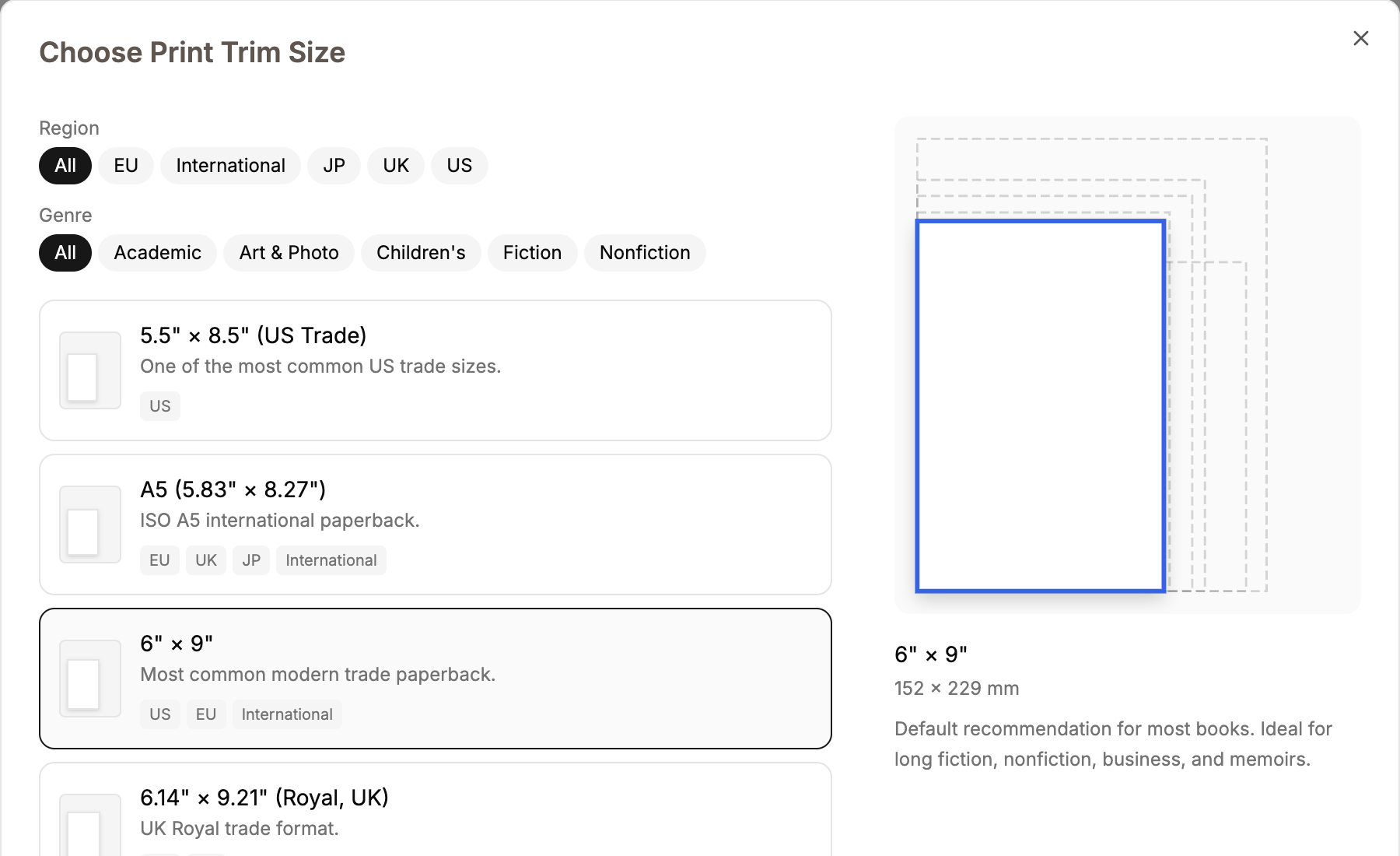
Filter real publishing formats by region and genre, then compare their proportions before selecting one.
Amazon recommends choosing trim before margins because the trim size changes pagination, and pagination changes the required inner margin. See Amazon’s official trim, bleed, and margin guide.
3. Let Folius resolve safe margins
For a KDP paperback, the minimum inner margin grows with the final page count:
- 24–150 pages: 0.375 in (9.6 mm);
- 151–300 pages: 0.5 in (12.7 mm);
- 301–500 pages: 0.625 in (15.9 mm);
- 501–700 pages: 0.75 in (19.1 mm);
- 701–828 pages: 0.875 in (22.3 mm).
The top, bottom, and outside minimum is 0.25 inches without bleed and 0.375 inches with bleed.
Folius’s automatic layout uses generous book margins. If you choose custom margins, the layout panel estimates the page count and flags margins that fall below KDP’s no-bleed minimums. The export screen performs the full check again with your final bleed choice.
Expand Book statistics to see the current word count, chapter count, and estimated print pages. This is particularly useful because changing trim, type size, or margins can change the page-count tier KDP uses for the gutter.
4. Decide whether the interior needs bleed
Use bleed when an image, illustration, background, or decorative element should reach the cut edge. If even one interior page needs bleed, Amazon requires the entire manuscript to be submitted as a bleed PDF.
At export, enable Include bleed in Folius. The generated page extends 0.125 inches (3.2 mm) beyond the trim edge. Folius then checks the larger bleed-aware safe margins.
Do not enable crop marks for the KDP upload. Amazon’s paperback submission guidelines say submitted interiors should not contain crop or trim marks. Folius labels its crop-mark option for test prints only.
5. Run the KDP print check
Open Export and select PDF for print. Folius paginates the whole book using the same geometry as the export, then checks:
- the KDP paperback range of 24–828 pages;
- the inside margin required for that page count;
- top, bottom, and outside margins.
If Folius shows a warning, return to Format and adjust the layout. A short book may need more genuine content or a different publishing format; adding empty pages merely to reach a minimum produces a poor reader experience and may still cause quality-review problems.
The preflight covers rules Folius can determine from the interior. It is not an Amazon approval and does not check your cover, rights, listing metadata, or every content-quality rule.
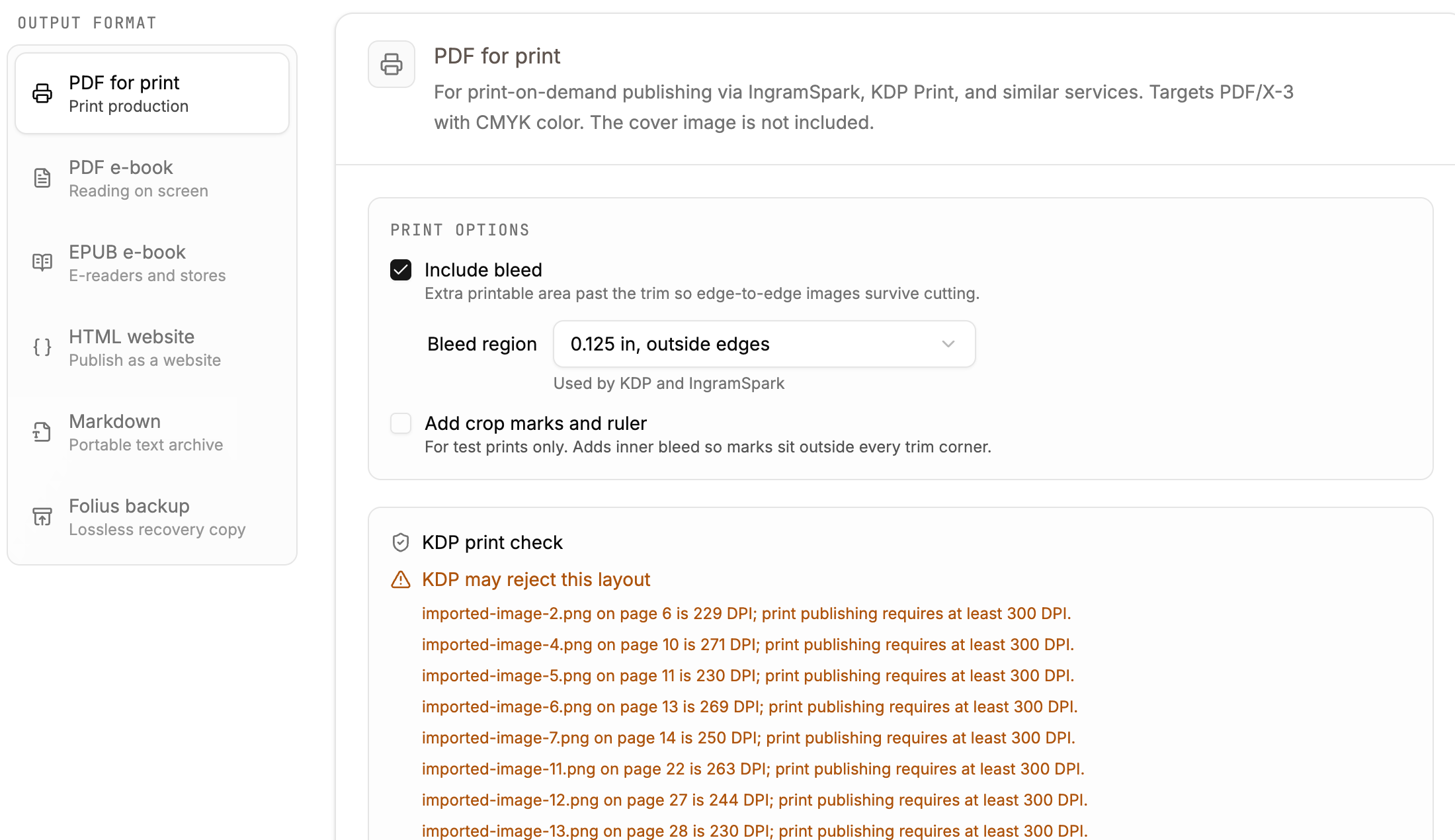
The export screen keeps print options and KDP warnings together so problems can be corrected before generating the file.
6. Export and inspect the PDF
Generate PDF for print, then inspect the file at high zoom:
- Check chapter openings, running headers, page numbers, and blank pages.
- Confirm that images intended to bleed reach beyond the trim edge.
- Look for isolated headings, awkward short final lines, or unexpected page breaks.
- Make sure the cover is not included in the interior PDF; KDP asks for the cover separately.
Amazon recommends PDF for the best print results and requires PDF for interiors with bleed. It also asks for embedded fonts and images of at least 300 DPI. Review the current paperback submission guidelines before uploading.
7. Upload to KDP and order a proof
In KDP, choose print options that match the Folius export—especially trim size and bleed—then upload the interior PDF. Use KDP’s Print Previewer and resolve every error it reports.
Finally, order a physical proof. Screens can show alignment, but only a printed copy reveals paper feel, binding loss, ink density, and whether the type is comfortable at real size.
Folius gets you to that proof with one maintained manuscript, a real paginated preview, and a preflight designed around the measurements KDP will evaluate.